
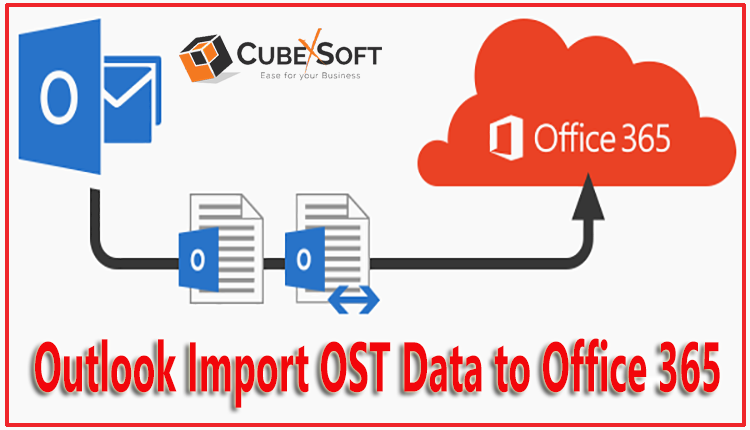
Microsoft Outlook generates OST files in an offline mode, and it stores the complete mailbox folder that includes emails, contacts, calendars, etc. However, a user cannot easily access it from any other place except the Microsoft Outlook profile that created it originally. Result, users are continuously searching for a safe solution to save and access the database of the OST file into other formats without any restrictions. Now, as we know perfectly that Office 365 cloud application is one of the safest places to store the database, and that’s why most OST users also want to save backup OST files to the Office 365 application. The Office 365 application provides so many advantages to all users. But now the problem is the user doesn’t know how to backup OST file in the Office 365 cloud application.
Don’t worry anymore, just read out this complete article that will provide all the possible techniques available to perform a backup OST file Office 365 migration process without losing any file. So, let’s follow the post…
Possible Ways to Perform OST to Office 365 Migration
Well! There are two topmost techniques available for you to solve how to backup OST file in Office 365 account, in which first manual way and the other is the professional way. In this section, we will discuss both techniques so that you can choose any one of them as per the requirement.
Technique 1 - Manual Way to Convert OST File to Office 365
Under this technique, you need to follow the two conversion rounds, and both are mandatory for the process. In the first round, user have to convert their OST database to PST format, and then the second round is for moving all PST data into the Office 365 account. Let’s follow the steps of conversion given below:
Round l: Convert an OST file to PST Format
1. Start the MS Outlook application on your local machine
2. Directly, go with the File menu and choose the Export to a File
3. Now, press the Next button to continue
4. In this step, you have to select the Personal File Folder (PST) and then, again, hit the Next tab
5. Choose a folder that you want to export, and allow the Include subfolders checkbox
6. In the last step of this round, insert the desired location path to store the exported file, and press the Finish button
Important Note: For the above steps, you have to connect to the Exchange Server environment.
Round 2: Move PST Files into Office 365 Account
Follow the second round of manual solution in which you can upload all PST files into the M365 application.
Technique 2 – Professional Way to Import Outlook Offline OST Files to Office 365
Under this solution, you can simply get one of the wonderful OST to Office 365 Converter software, which is suggested by professionals. This solution comes with a few conversion steps that can quickly and directly save backup OST file to Office 365 account without any trouble. Let’s follow the step-by-step guide that is given below:
1. Download and open OST to O365 Converter
2. Open the program and load the files using Add File/Folder
3. Click the select all option for moving all files and hit Next
4. Now, the software uploads all folders to the left pane
5. In this, you can choose the option from I am Admin and I am not Admin
6. After choosing it, fill in the necessary details of the O365 account. Hit Next
7. Avail various filters on the next screen to perform selective conversion
8. Finally, click on the Export button to start the conversion process
9. At last, get the messages where you can click Ok and also opt for the save report option if you need a log report of the complete process.
Final Conclusion
The above post explained both the solutions available to solve your issue of how to backup OST file in the Office 365 account. Now, it’s totally upon you to take any one of the techniques to perform the backup OST file Office 365 procedure. Well! If we talk about both techniques, then we observe that the manual solution is too lengthy and risky a method. On the other side, professional technique offers a lot of benefits along with a simple and short procedure. These benefits are batch file backup, advanced filters, save report functionality, etc. To know more about this technique, you can freely download OST Converter by using the trial edition and perform the entire conversion process on any Windows OS platform.

 English
 Arabic
 French
 Spanish
 Deutsch
 Turkish
 Dutch
Dutch
 Italiano
 Russian
 Romaian
 Portuguese (Brazil)
 Greek
Greek