
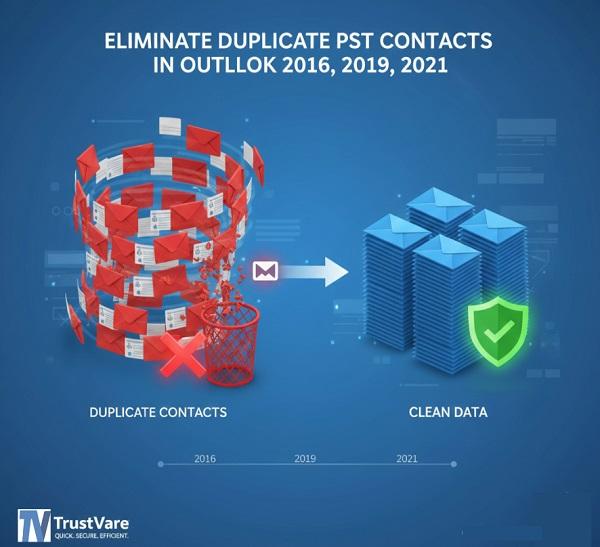
Contacts are the backbone of professional and personal communication. In Microsoft Outlook, especially while working with PST files, users can effectively manage emails, scheduling, and relationships. However, Outlook users often face one of the most common problems of duplicate contacts, which can be rather annoying over time. This problem has gained significant visibility in Outlook 2016, 2019, and Outlook 2021, where situations requiring large PST files or frequent data imports are commonplace.
Duplicate PST contacts may seem harmless at first, but they can significantly affect productivity, data accuracy, and the flow of communication. Hence, eliminating them is not about just cleaning but restoring efficiency.
Why Do Duplicate Contacts Appear in Outlook PST Files?
Duplicate contacts appear in Outlook PST files because of a long-standing issue: some of the more prevalent causes include:
- Importing the same PST file multiple times
- Syncing with mobile devices or cloud services
- Migrating data between different versions of Outlook
- Restoring backups without an appropriate check
- The use of third-party sync or email management tools
In Outlook 2016, 2019, and 2021, these instances are much more common because of hybrid work environments and multi-device access. Thus, PST contacts gradually fill with repeated entries with the same name, email address, or phone number.
How Duplicate Contacts Affect Outlook Performance?
The true nature of duplicate contacts is more than visual obfuscation; they affect how Outlook experiences behavior:
- Confused contact lists: Selecting the wrong reading of a contact could lead to miscommunication
- Email delivery to errors: Emails could be mistakenly sent to outdated addresses or incorrect email IDs
- Reduced performance by Outlook: Large PST files with redundant data use extra computing resources
- Increased management effort: Contact searches, updates, or organization becomes clunky
For business users, this could mean opportunities being lost or being viewed as unprofessional in their communication.
Manual Methods to Eliminate Duplicate PST Contacts
Outlook has several methods available to remove duplicate contacts, which are of limited use.
1. Using Outlook Import Settings
Outlook gives users a pretty valuable option during PST importation: don't import duplicates and replace duplicates with items imported. This option of duplicates worked only during the import, when the deletion should have taken place.
2. Sorting Contacts Manually
Users can change the Contacts view and sort them by name, e-mail address, or company to identify duplicates, which can then be deleted one by one.
The limitations of this method are:
- Extremely time-consuming for large PST files
- Risk of accidental loss of work
- Not practical for hundreds or thousands of contacts
3. Using Categories or Views
Custom views and categories can help visually detect similar contacts, but again, the actual deletion process is manual and time-consuming.
Challenges in Outlook 2016, 2019, and 2021
These versions of Outlook are tool-wise, lacking the advanced built-in delete duplicates from PST contacts tool. Listed here are major challenges:
- No automatic duplicate scanning
- No preview-based contact comparison
- No methodology to smartly merge contact details
- Manual processes are not reliable as the dataset increases.
These problems only get louder as the size of PST files in Outlook 2021 increases.
The Smarter Way to Eliminate Duplicate PST Contacts in Outlook 2016, 2019, and 2021.
Instead of spending hours manually checking contacts, many users now prefer automated solutions. A dedicated tool is TrustVare Outlook Duplicate Remover. It can quickly scan PST files like emails, contacts, notes, tasks, calendar, etc, identify duplicate items and remove them without affecting original data. It has an easy UI for non-technical users and they can use it without technical knowledge. It will support all Windows OS versions, like 11, 10, 8.1, 8, and 7, without downloading any applications. It works seamlessly with Outlook versions like 2003, 2007, 2010, 2013, 2016, 2019, 2021, and 2024.
Key Benefits of This Tool
- Scans PST files deeply to detect exact and similar duplicate contacts
- Allows comparison using fields like name, email address, phone number, etc.
- Provides a preview option before removal
- Maintains original contact data integrity
- User-friendly interface suitable for both technical and non-technical users
Instead of relying on manual guesswork, users can clean their PST contact folders with confidence and precision.
How to Use It?
-
Download & Install
Download this tool and install it on your system.
-
Launch the Tool
Open the software. It automatically detects the Outlook profile or allows you to browse and add a PST file.
-
Select Data Type
Choose Contacts (or other items if needed) to remove duplicates.
-
Set Duplicate Criteria
Select comparison fields such as Name, Email Address, Phone Number, etc.
-
Preview Duplicate Items
The tool scans the PST file and shows a preview of duplicate contacts.
-
Remove Duplicates
Click on the “Remove Duplicate Mails” safely.
-
Completion
Once the process finishes, your Outlook contacts will be clean and organized.
Final Thoughts
Duplicate PST contacts are a silent productivity killer in Outlook 2016, 2019, and 2021. While manual methods may work for very small datasets, they are not sustainable in the long run. As Outlook usage becomes more data-intensive, smarter solutions are essential. By eliminating duplicate contacts effectively, users can enjoy a faster Outlook experience, accurate communication, and a well-organized contact database. For those who want a professional and time-saving approach, tools like the Outlook Duplicate Removal Tool offer a modern and reliable solution.

 Arabic
 French
 Spanish
 Portuguese
 Deutsch
 Turkish
 Dutch
Dutch
 Italiano
 Russian
 Romaian
 Portuguese (Brazil)
 Greek
Greek